


Setup Guide
How to Set Up Automatic Purchase Capture
Pointalize never asks for bank passwords or logins. Learn how to connect automatic purchase logging on iPhone and Android in under two minutes.
iPhone Setup: Apple Shortcuts Automation
Apple protects your privacy by preventing apps from silently reading notifications. Instead, you create a personal automation in the built-in Shortcuts app to send transactions to Pointalize.
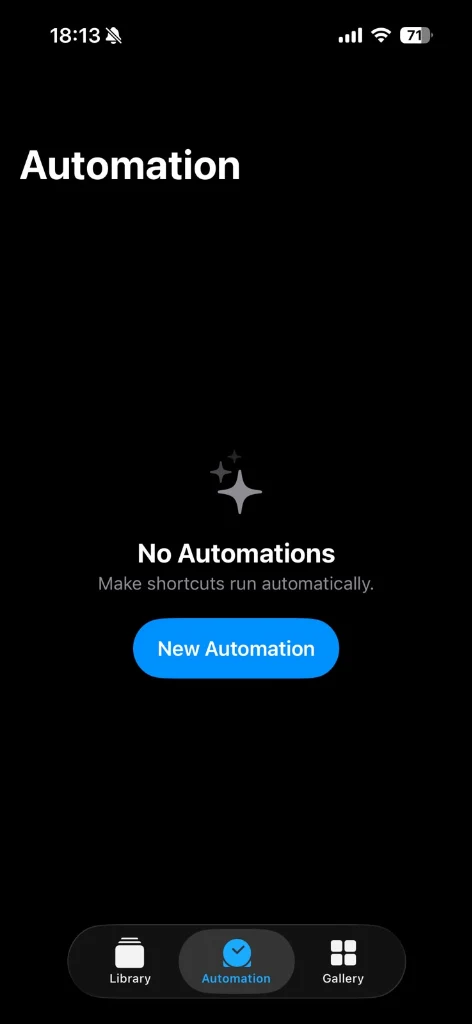
Open Shortcuts & Tap Automation
Open the built-in Shortcuts (Kurzbefehle) app on your iPhone. In the bottom bar, tap the Automation tab, then tap the blue New Automation button (or the + icon in the top right).
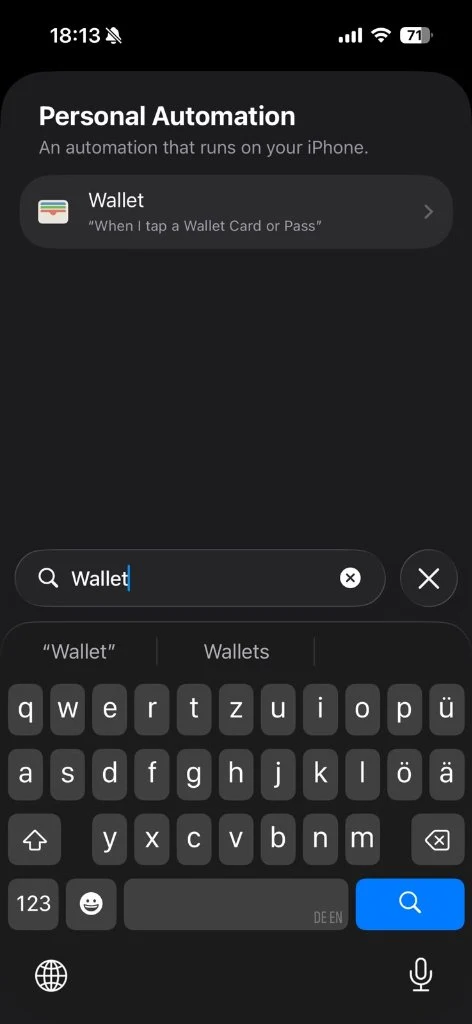
Choose Trigger: Search for “Wallet”
On the Personal Automation screen, type Wallet into the search bar. Tap on the Wallet entry (“When I tap a Wallet Card or Pass”). This trigger activates automatically whenever you tap or pay with Apple Pay.
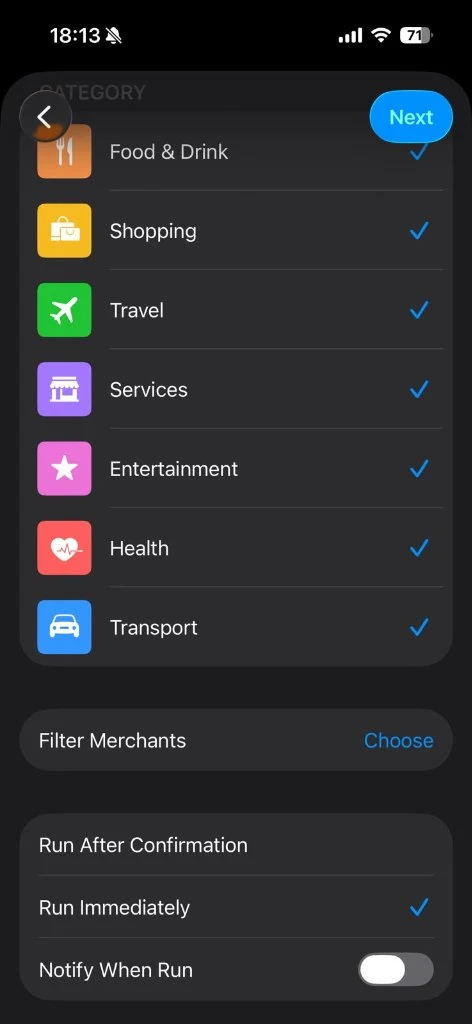
Set to “Run Immediately” & Tap Next
Leave all categories checked (Food & Drink, Shopping, Travel, etc.) to capture every checkout. At the bottom, select Run Immediately so Pointalize logs transactions silently without prompting. Toggle Notify When Run to OFF, then tap Next in the top-right corner.
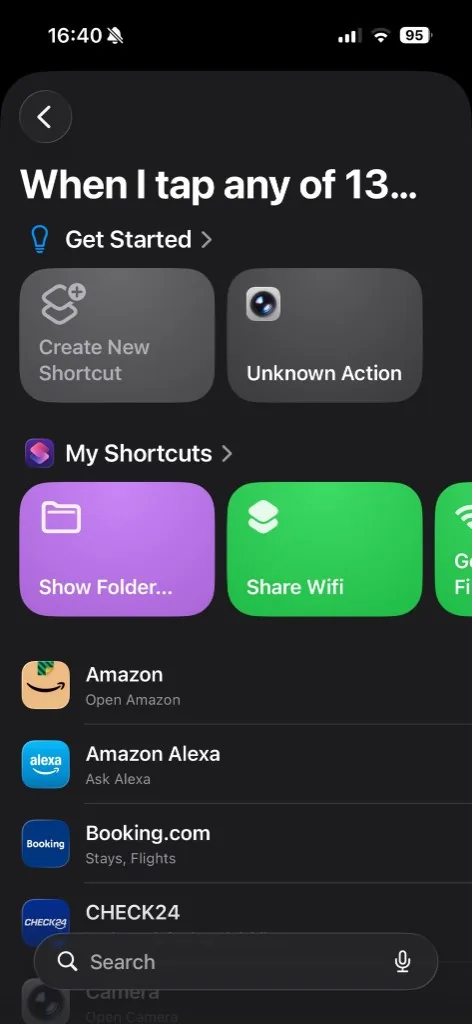
Tap “Create New Shortcut”
On the Get Started screen, tap the top tile Create New Shortcut. Do not pick a finished app tile from the list. Only this path adds Receive transaction as input so you can map Wallet fields next.
Search Pointalize and add Purchase
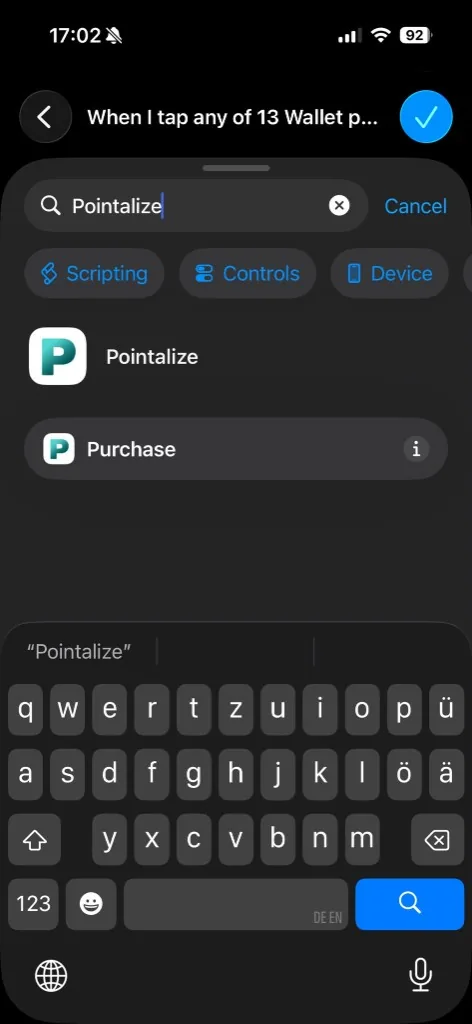
In Search Actions, type Pointalize and tap Purchase — only that one action.
Map fields from Shortcut Input
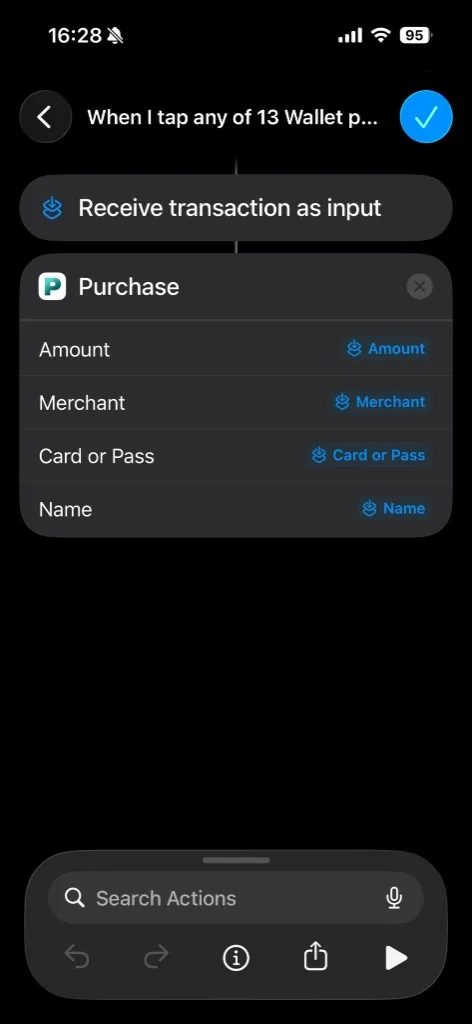
Tap each blue field on Purchase and choose Shortcut Input (the transaction). Map them like this:
- Amount ← Amount (or Currency Amount)
- Merchant ← Merchant (or Name)
- Card or Pass ← Card or Pass
- Name optional — leave empty or map Name
Do not test with Play: there is no transaction input until you tap with Apple Pay. Save with Done, then pay once at a terminal. Online purchases do not fire this Transaction trigger.
Android Setup: Notification Access
Android allows Pointalize to listen for transaction alerts from bank apps and Google Wallet directly on your phone using Android’s official NotificationListenerService.
Enable Purchase Capture in Pointalize
Open the Pointalize app on your Android phone. Go to Profile → Purchase Capture and toggle the main Purchase capture switch to ON.
Grant “Notification Access” in Android Settings
Tap the Open Notification Access button in Pointalize. Your phone will open the Android system screen for Device & app notifications. Find Pointalize in the list and switch it to Allow.
Automatic Tracking Is Live!
Done! You don’t need to configure individual bank apps. Pointalize automatically inspects checkout notifications, calculates rewards, and warns you if another card would have yielded more points!
Troubleshooting
Frequently Asked Questions
Why does iPhone require Shortcuts instead of running silently?
Apple iOS restricts any third-party app from reading another app’s notifications or tapping into Wallet in the background. The Apple Shortcuts app is Apple’s sanctioned, fully secure way to let users automate their own workflow with explicit consent.
What if my bank app sends SMS instead of push notifications?
On Android, you can allow Messages/SMS apps in the Pointalize capture settings. Pointalize uses a curated short-code filter (e.g. Chase 24273, Amex 729725) so marketing SMS messages are never processed. On iOS, you can create a Personal Automation triggered by incoming messages containing bank keywords.
Can I turn off purchase capture at any time?
Yes. Toggling off Purchase capture in Pointalize settings immediately stops background listening on Android and clears any queued local data. On iPhone, simply disable or delete the automation inside Apple Shortcuts.
Ready to optimize every checkout?
Download Pointalize free for iOS and Android. No bank credentials needed.